The Printer That Refuses to Cooperate: A Practical Fix Guide for Australian Offices
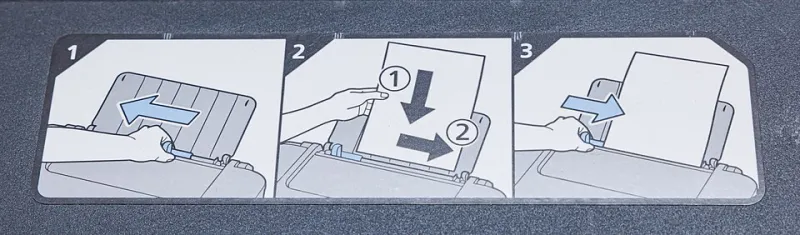
Photo: Dinkun Chen, CC BY-SA 4.0, via Wikimedia Commons
Few pieces of office technology inspire as much collective exasperation as the networked multifunction printer. It works for the accountant's laptop but not the manager's. It prints from the Windows desktop in the front office yet vanishes from every MacBook in the building. And it invariably fails five minutes before an important deadline.
The good news: most printer connectivity failures follow a handful of predictable patterns. Here is how our support team works through them.
Start With the Network, Not the Printer
Before blaming drivers or software, confirm the fundamentals. Is the printer connected to the same network as the device trying to print it? In many offices we visit, the printer sits on a guest or IoT VLAN while staff laptops are on the corporate network — a configuration that guarantees discovery failures.
Print the device's network configuration page from its onboard menu and confirm it holds a valid IP address. If it shows 169.254.x.x, the printer never received a proper DHCP lease. Assigning a static IP (or a DHCP reservation on your router) eliminates an entire class of problems, because printers that change addresses regularly cause installed drivers to point at nothing.
Driver Conflicts: The Classic Windows Headache
Windows machines frequently accumulate multiple driver versions for the same device, particularly after a firmware update or a print server change. Symptoms include jobs stalling in the queue, garbled output, or the printer appearing 'offline' despite working for colleagues.
The reliable fix:
- Remove all instances of the printer from Settings > Printers & scanners.
- Delete the associated drivers via Print Server Properties.
- Restart, then reinstall using the manufacturer's current driver for your exact model and Windows version.
Where possible, prefer the vendor's universal or PCL-based driver over the model-specific package — these are far more resilient across Windows updates.
AirPrint, Universal Print and the Apple Ecosystem
MacBooks and iPhones rely on AirPrint, which requires both devices to be on the same network segment with multicast discovery (Bonjour) functioning. If AirPrint discovery fails, check whether 'AP isolation' or 'client isolation' is enabled on your Wi-Fi access points — a common culprit in small business routers.
For organisations moving to Microsoft 365, Universal Print removes on-premises print servers entirely, which suits hybrid teams printing from home. Be aware, however, that Universal Print requires compatible printers or a connector app, and older devices may simply not qualify. Check compatibility before committing.
Cloud Printing for Hybrid Teams
With staff split between the office and home, cloud-managed printing platforms let employees release jobs securely at the office device. Solutions range from built-in vendor services (such as HP's and Canon's cloud offerings) to third-party print management platforms. For businesses handling client-sensitive documents, ensure any cloud print service offers release-code authentication so documents aren't sitting in an output tray unattended.
When to Cut Your Losses
Honest question worth asking: is this printer worth saving? If your multifunction is more than six or seven years old, no longer receives firmware updates, and has consumed more than its purchase price in toner, replacement usually wins on total cost of ownership. Modern devices with native cloud management, standard AirPrint support and predictable subscription-based consumables frequently cost less to run than maintaining an ageing unit — and they consume dramatically less of your staff's patience.
A final tip: whatever you run, keep a one-page 'printer facts' sheet — IP address, admin credentials, driver location — in your IT documentation. Future you will be grateful.